Manage users
Add members to a plant
-
Open your plant’s team page by clicking the menu on the left.
-
Click Add people at the top right.
-
Search for the user’s email address in the pop-up window.
-
Select one or more users from the suggestions, then click Add.
-
Registered users are added directly to the team.
-
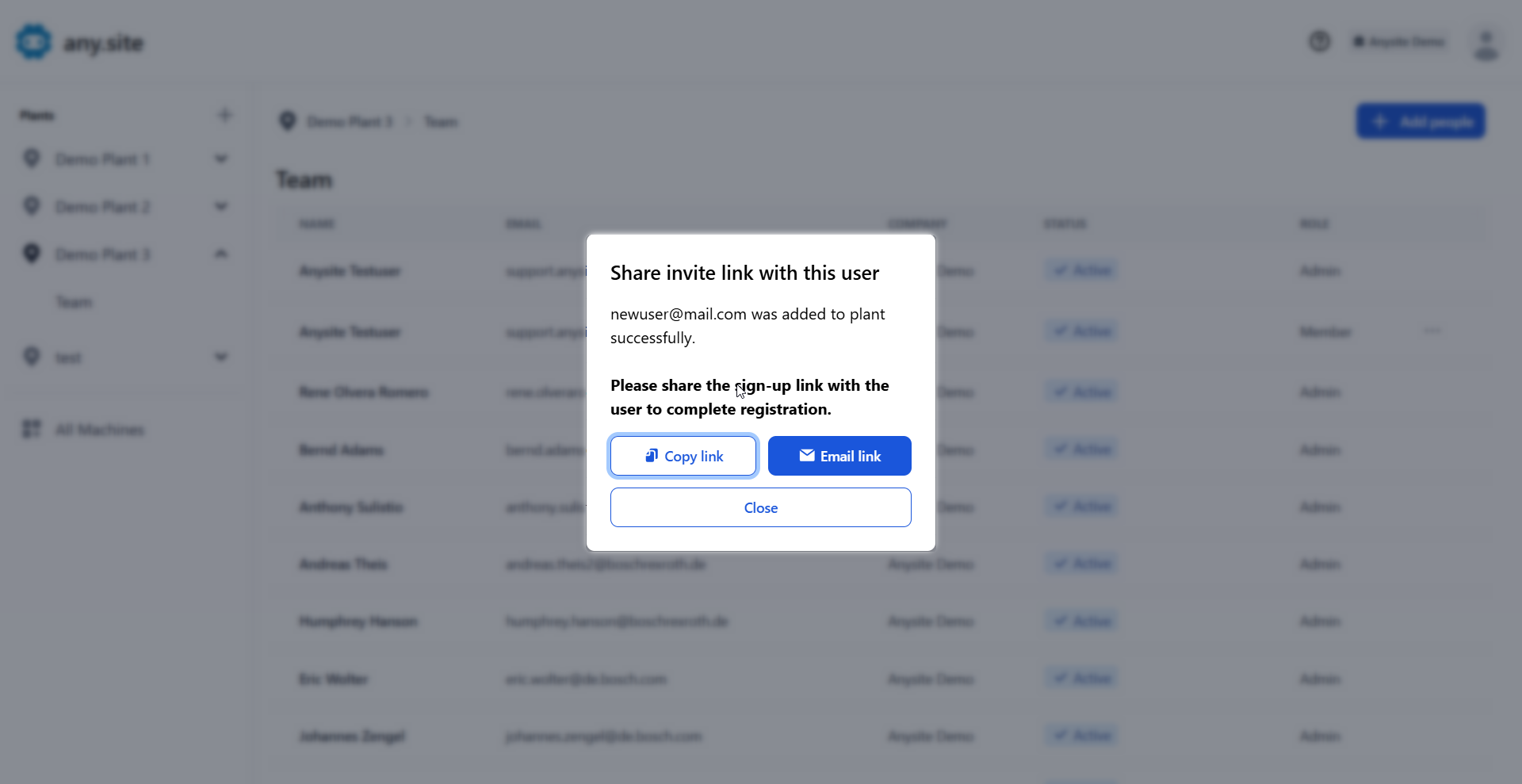
For users who are not registered on any.site, share the invite link shown after you add them.
-
Change user roles
-
Open your plant’s team page by clicking the menu on the left.
-
Click Options at the end of the row for the user whose role you want to change.
-
Click Assign admin role or Remove admin role as needed.
-
Confirm the action by clicking Assign role or Remove role in the confirmation dialog.
| You cannot remove the admin role from the last admin of a plant. Assign the admin role to another user first. |