Provide bots, manage and analyze data
To browse available bots and bot providers on any.site, see Explore all bots.
Connecting a bot to any.site is a three-step process.
Access My bots page
Navigate to My bots by clicking the menu on the left. If you haven’t connected any bots yet, you’ll see an empty state with a Connect bot button.
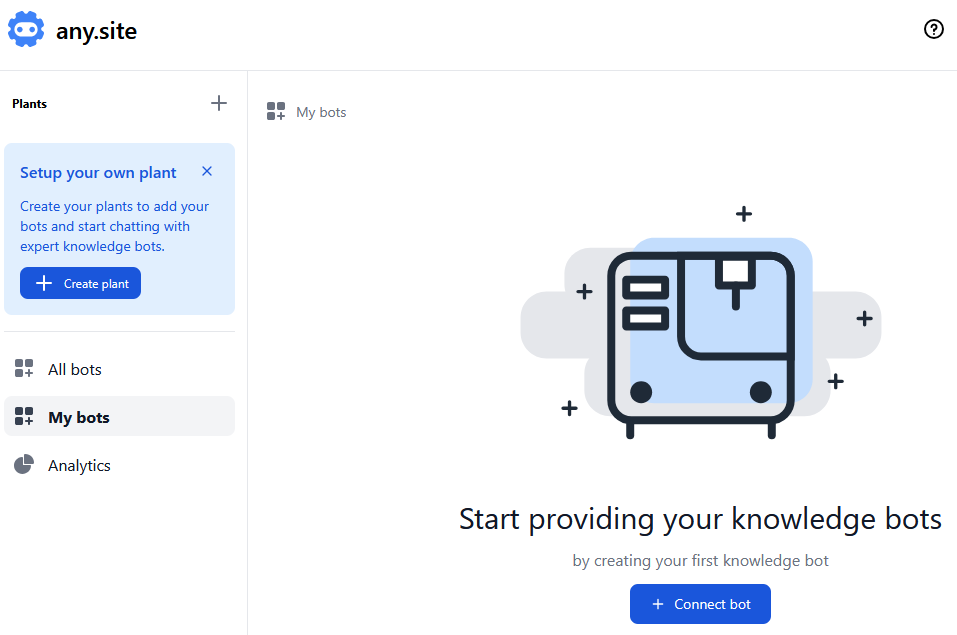
If you already have bots connected, you’ll see them listed. Click Connect bot at the top right to add a new bot.
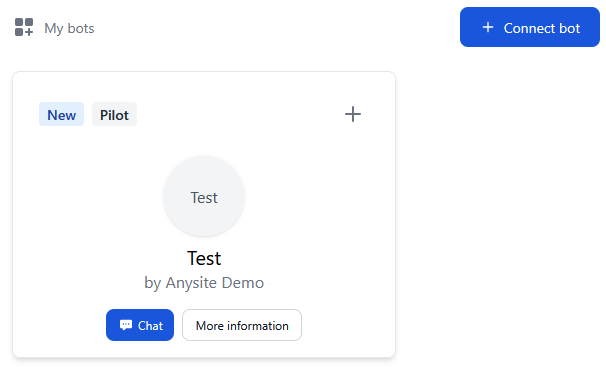
Step 1: Select bot provider
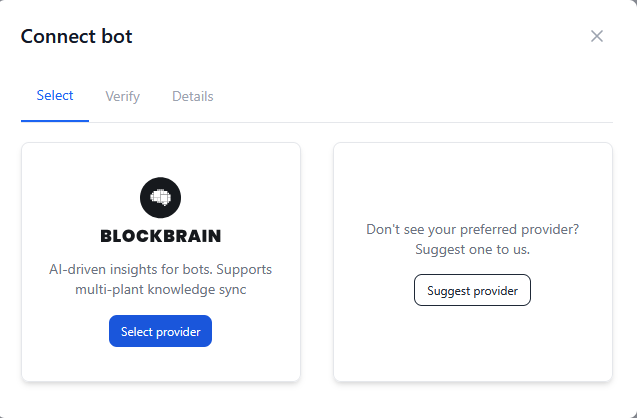
On the first step, you’ll be asked to select your bot provider. Currently, Blockbrain is supported as a bot provider. If you’d like to suggest another provider, click Suggest provider to send a request.
Step 2: Verify bot credentials
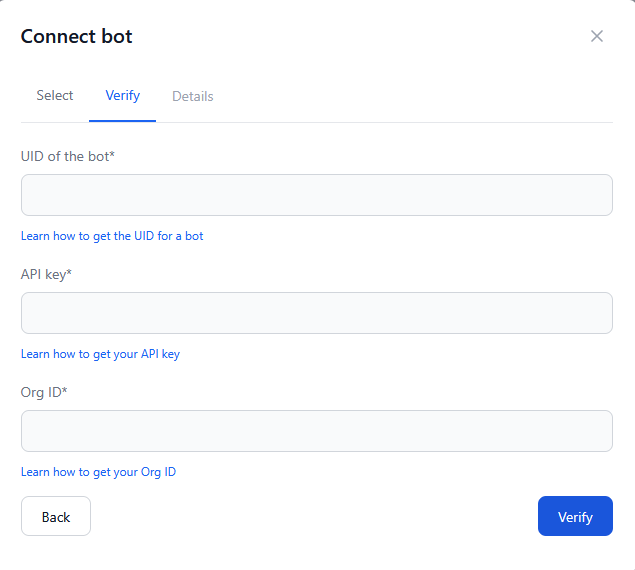
After selecting your provider, you need to verify your bot’s credentials to ensure a successful connection.
|
Each field includes a help text link for guidance on where to find these credentials in your bot provider’s dashboard. |
After entering all credentials, click Verify to validate the connection.
Step 3: Configure bot details
In the final step, you’ll configure your bot’s display information and localized content.
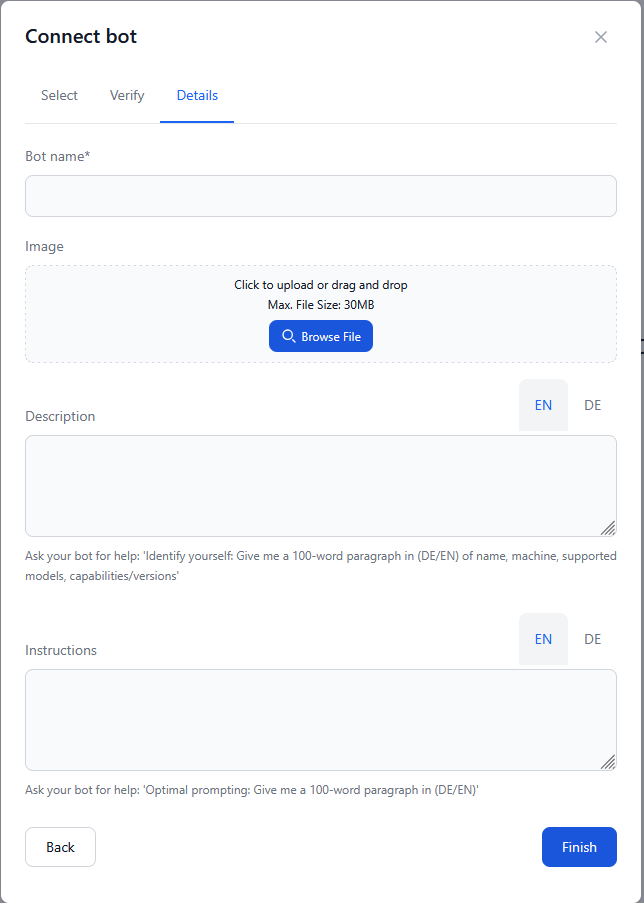
Information:
-
Bot Name: A display name for your bot (pre-filled by the bot provider’s platform but can be modified).
-
Image: Upload a bot avatar image. If none is selected, the company image will be displayed.
For each supported language, you can provide details about the bot. You can ask the bot to generate this information for you:
-
Description: A detailed description of what your bot does and its capabilities.
-
Instructions: Usage instructions and guidelines for end users.
Use the language tabs (EN/DE) to switch between languages and provide translations for each field.
When you’re satisfied with the configuration:
-
Click Finish to complete the bot connection.
Your bot will now be added to your My Bots page and will be available for companies to use. A "New" badge will be displayed for two days.
Edit a connected bot
Once a bot is connected, you can update its details at any time.
-
Navigate to the My bots page by clicking the menu on the left.
-
Find the bot you want to edit.
-
Click More information or open the bot’s details page.
-
Click Edit at the top right.
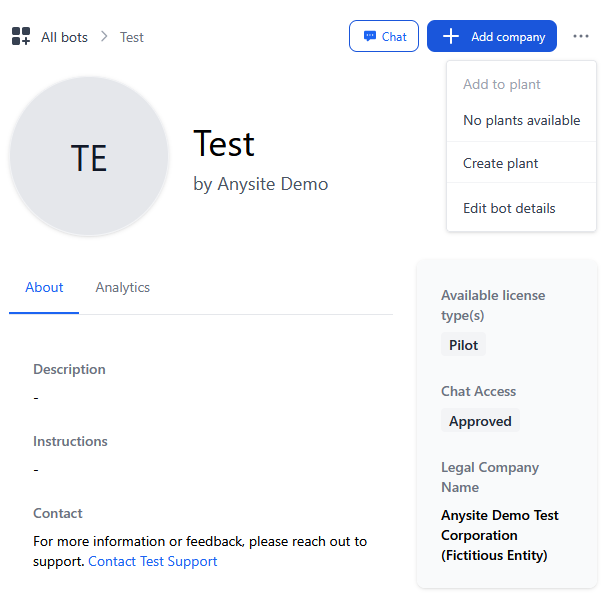
The edit form opens directly to the Verify credentials step, allowing you to:
-
Update API credentials if needed.
-
Modify bot name, image, descriptions, and instructions.
Manage companies for the bot
Add a company
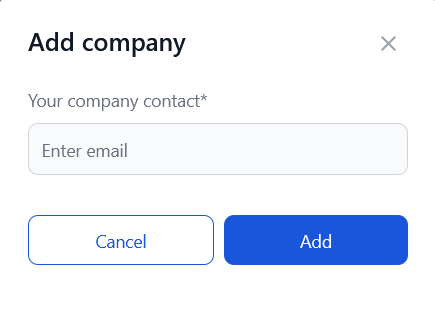
Open the My bots page by clicking the menu on the left. Then open the desired bot’s details page. Click Add company at the top right, enter the email address in the pop-up window, and click Add.
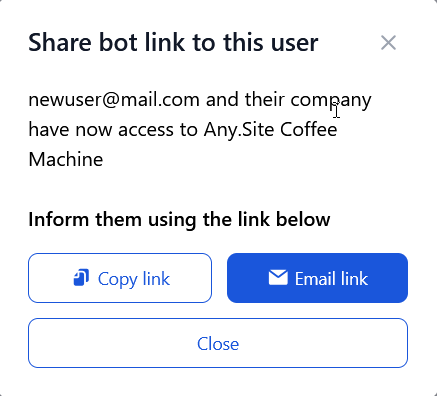
If the company of the user is not registered on any.site, please share the invite link with them. If the company is already registered, they will be added directly to the bot’s users.
Remove company
Open the bot’s details page by clicking the More information button on your bot. Switch to the Companies tab. Click on Options at the end of the row for the company you want to remove from your bot and click Remove company. Confirm the action by clicking Remove in the confirmation dialog.
Analytics
Click Analytics in the left menu to see an overview of how your bots and users are performing across your plants and companies. Use this page to understand engagement, usage trends, and overall bot effectiveness.
When you open the Analytics page, you will see two main sections:
-
Analytics summary cards
-
Charts and bot-level insights
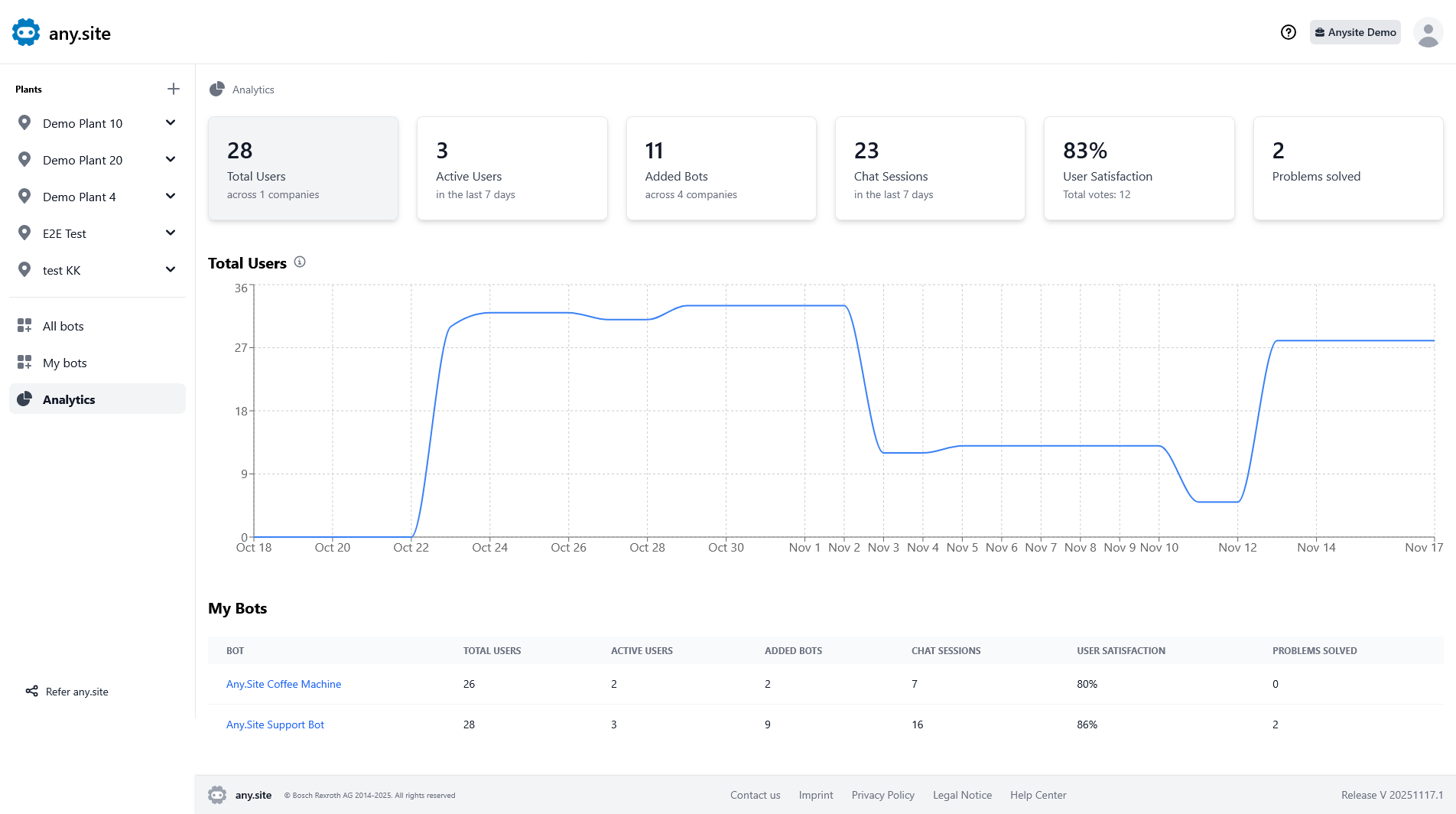
Analytics summary cards
The summary cards offer a quick snapshot of your overall activity.
-
Total Users
Displays the total number of users across all companies you have access to.
This value updates regularly but may not always reflect real-time changes. -
Active Users (last 7 days)
Number of users who have interacted with a bot in the last seven days. -
Added Bots
Number of bots added across companies (data updated hourly). -
Chat Sessions (last 7 days)
Shows the total number of new or ongoing chat sessions. -
User Satisfaction
Represents the average satisfaction rating submitted by users.
Includes the total number of votes displayed below the score. -
Problems Solved
Number of user responses indicating that their problem was solved during a chat session.
Chart
Click on an analytics card to display a corresponding chart below that visualizes the data in a graph with more details.
What you can view in the chart:
-
Historical growth and changes.
-
Counts by date (hover to view exact numbers).
My bots table
-
This table lists all bots you have connected, along with performance indicators for each bot.
-
Click on a Bot name to navigate to the bot details page.
|
If you want to learn how to become a bot provider, visit: Getting started. |