Managing Plants
Managing plants allows you to create, edit, and delete plant entries in the system. Admins can maintain plant details, while members only have viewing access.
Create plant
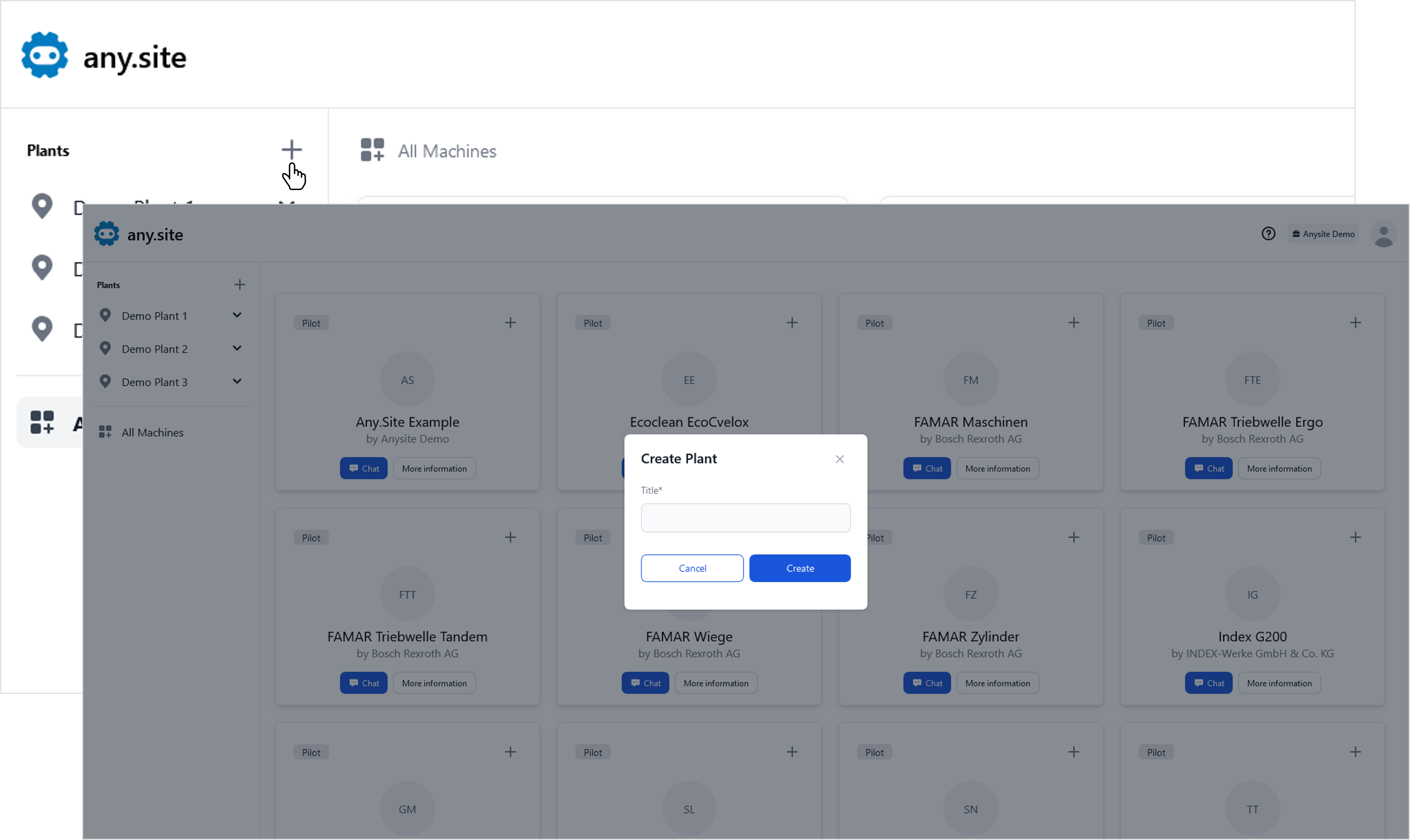
Click the plus sign next to the Plants heading in the menu on the left. Enter the desired title in the pop-up window and click Create.
Your newly created plant will now appear in the list in the menu on the left.
Edit plant
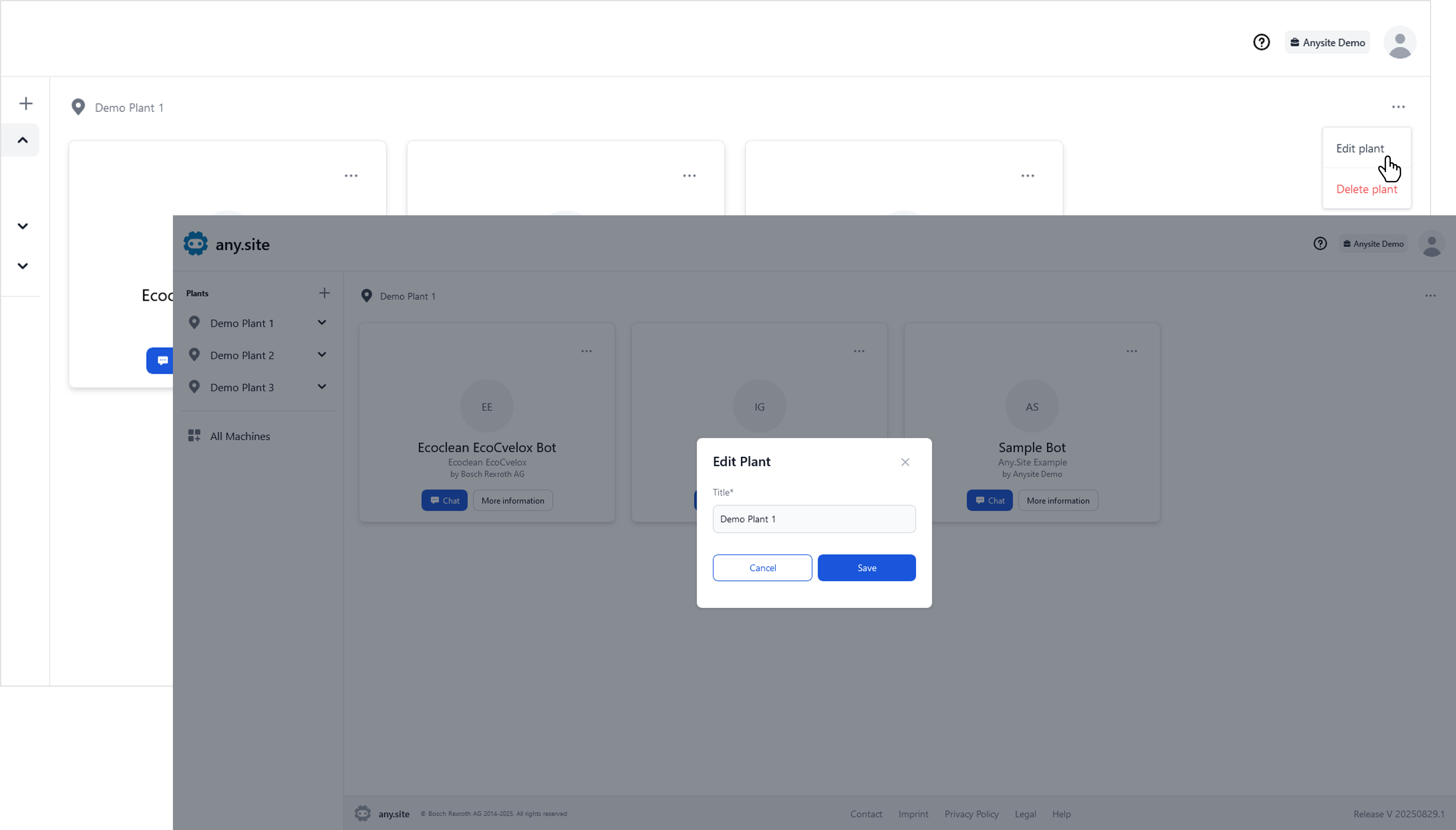
Open the overview of your plant by clicking on the menu on the left. You can now edit the plant by clicking on Options in the top right.
Then click on Edit plant, enter the desired title in the pop-up window, and click Save.
Delete plant
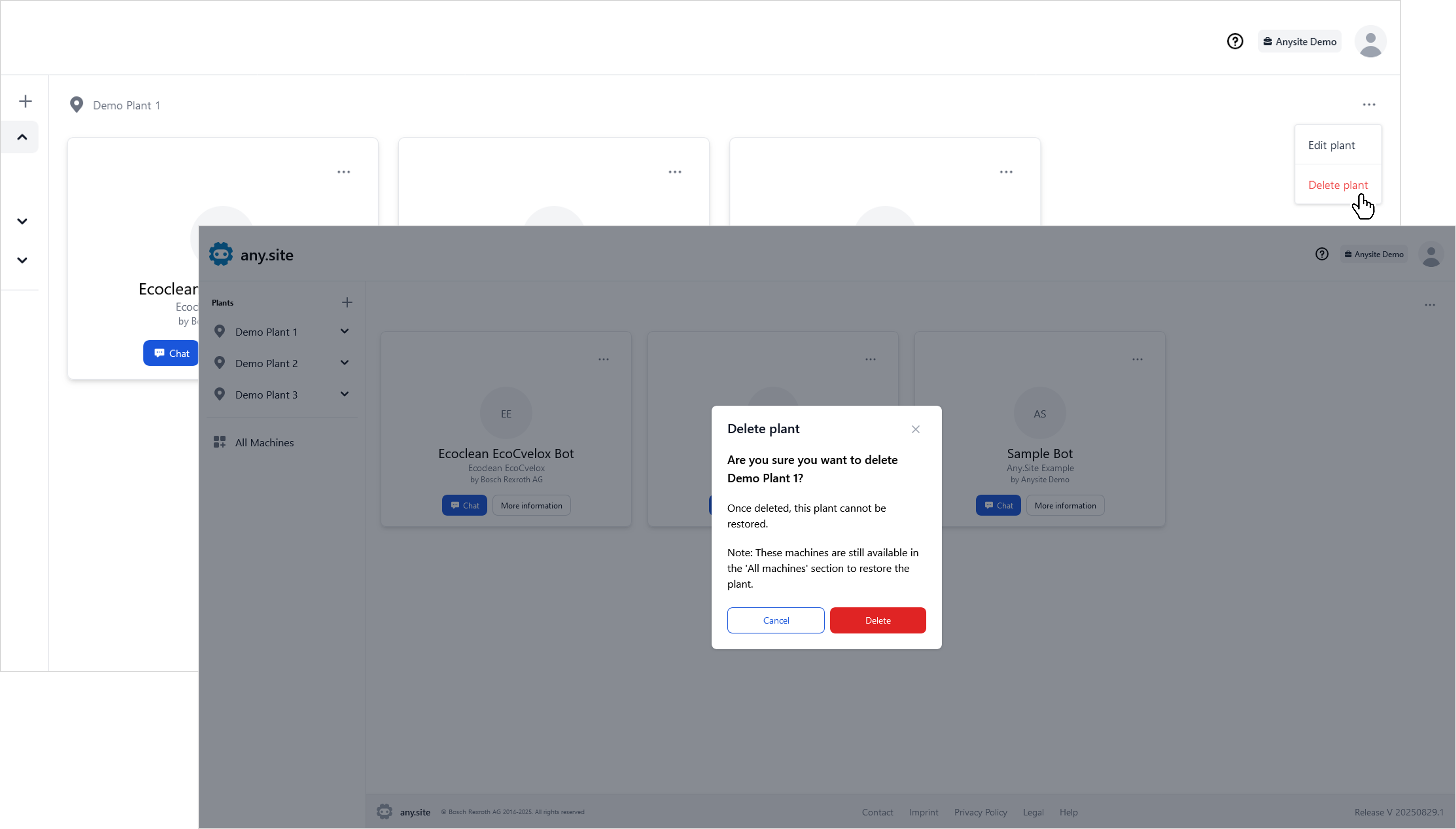
Open the overview of your plant by clicking on the menu on the left. You can now delete the plant by clicking on Options in the top right.
Then click on Delete plant. Confirm the action by clicking Delete in the pop-up menu.
|
Currently, an admin can view, edit, and delete all plants within his/her company. Please do not make any changes to other plants. |